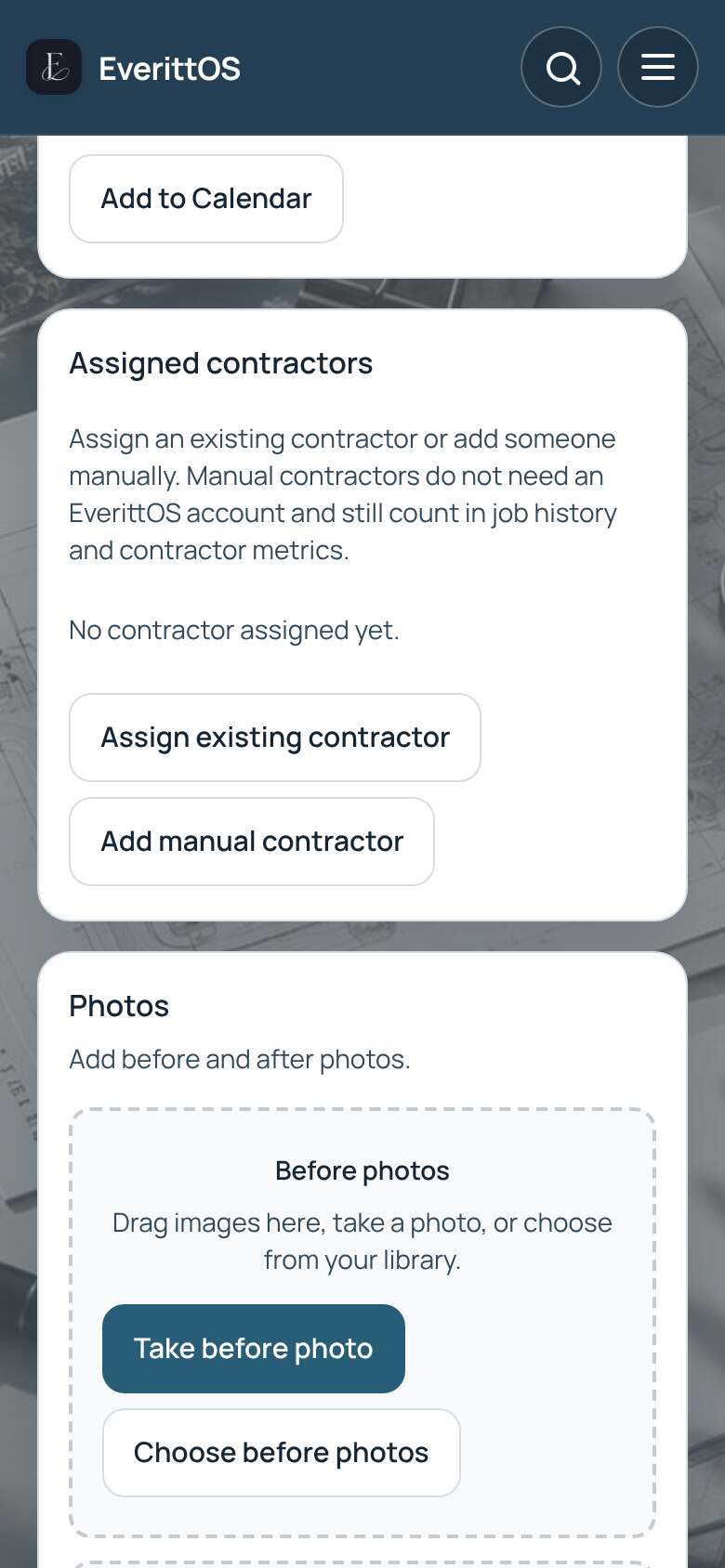
Add before and after photos
Take photos on the job so you and your customer can see the work.
- Open the job.
- Scroll to Photos.
- Tap Take before photo, or Choose before photos to pick from your phone.
- When the work is done, tap Take after photo or Choose after photos.
- Use Take progress photo for anything in between.
Tip: Photos upload on every plan. The side-by-side before and after view comes with Pro.